Mint Marker Deck
Create a slide deck with oversized mint headlines, loose black marker characters, and warm paper backgrounds. Turn project plans, workshops, and team updates into a presentation you can edit in your browser and export to PowerPoint.


Similar Skills
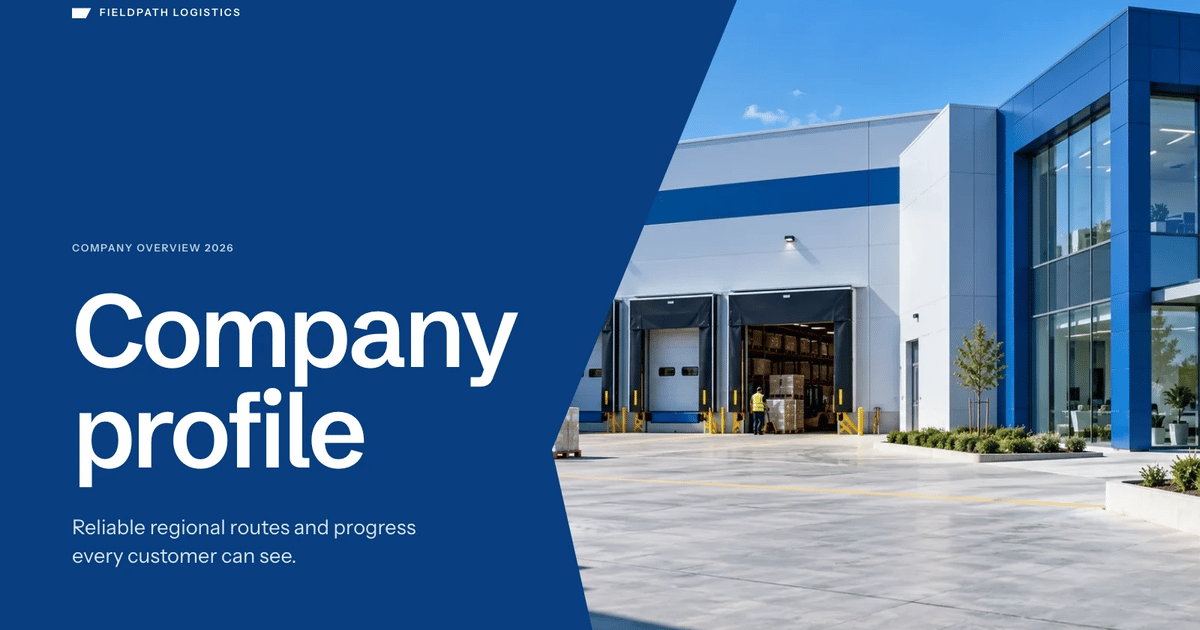
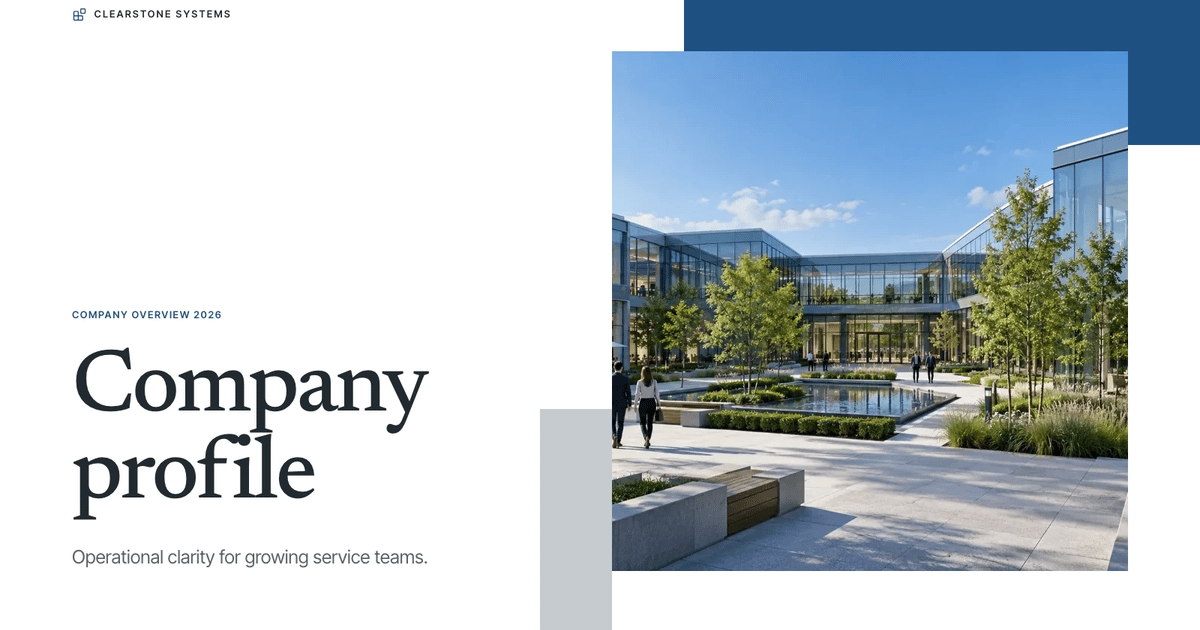
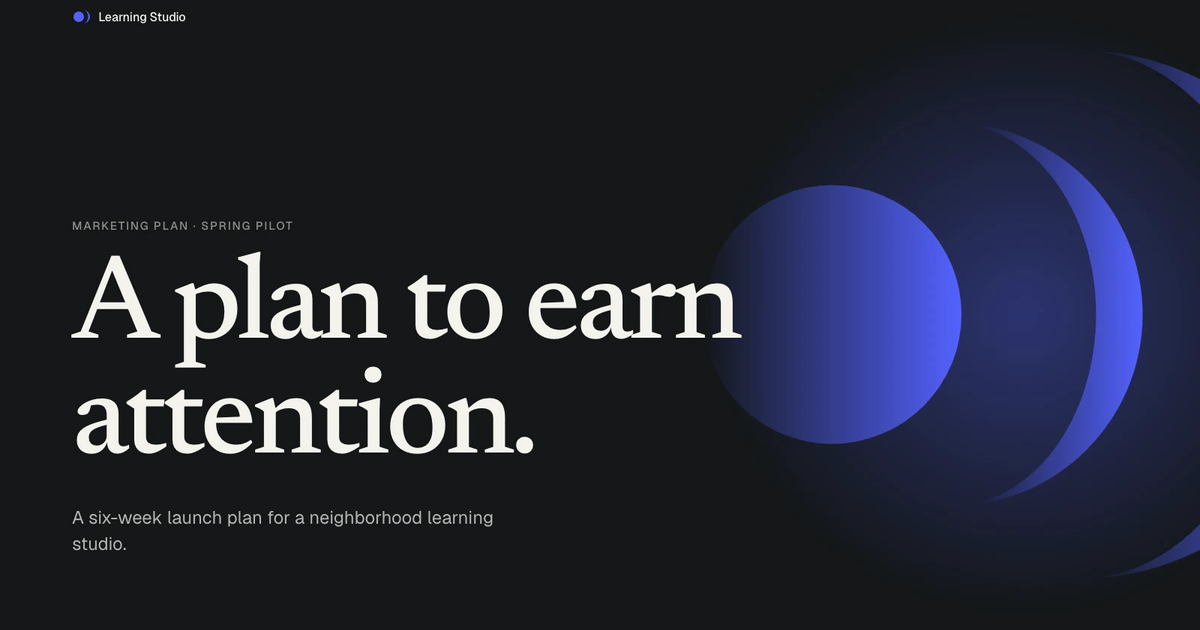
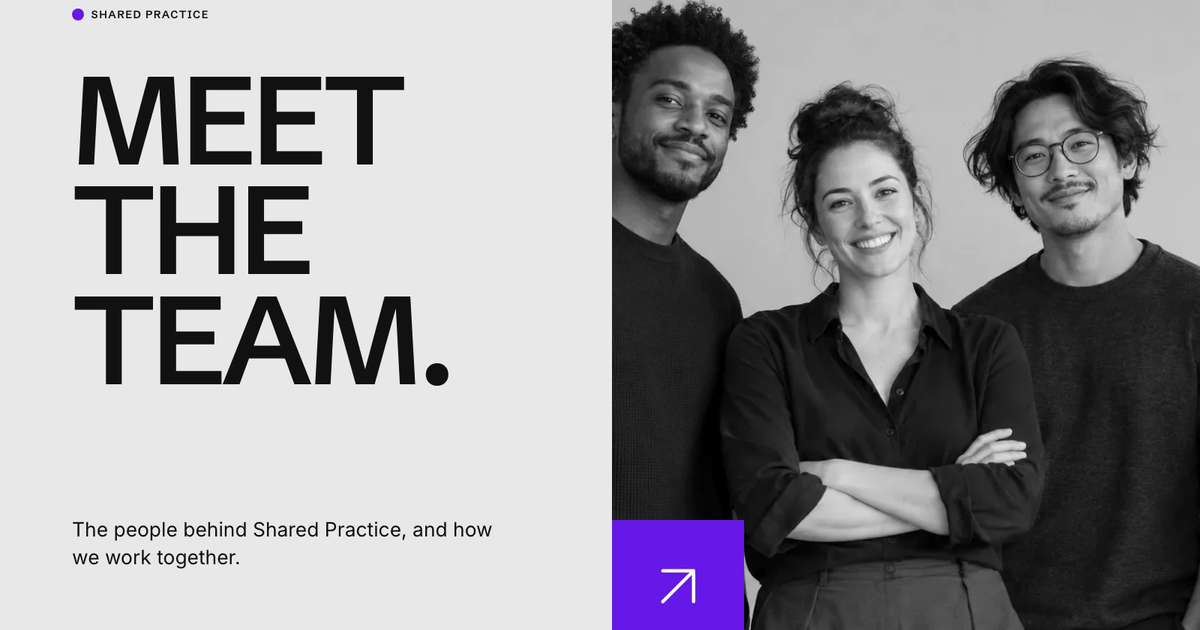
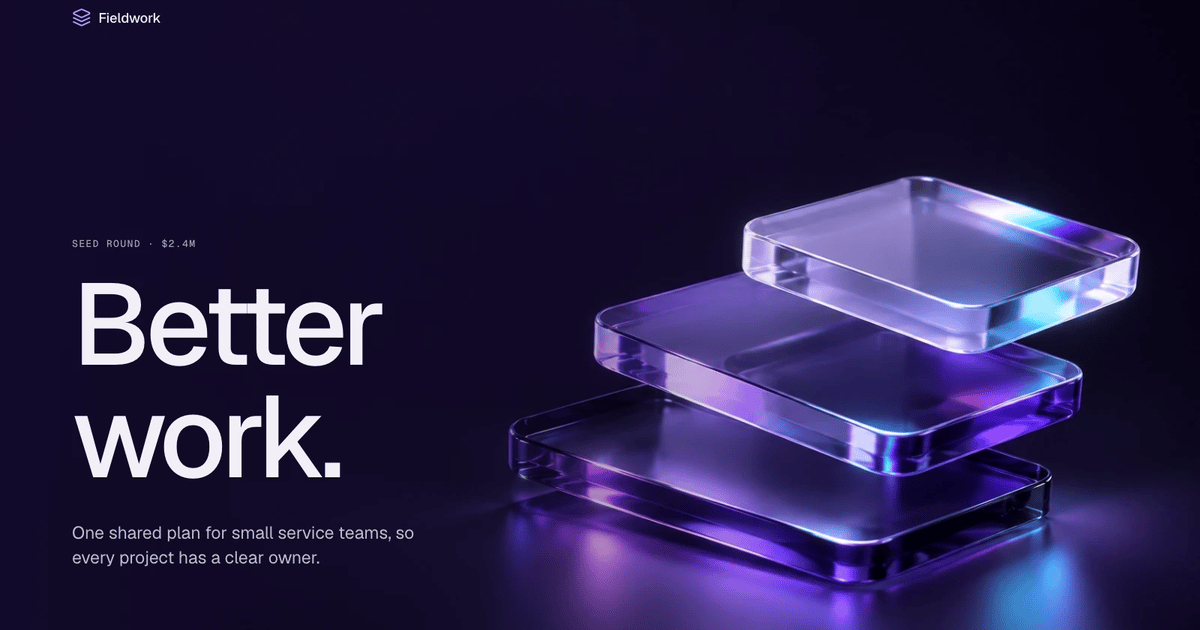
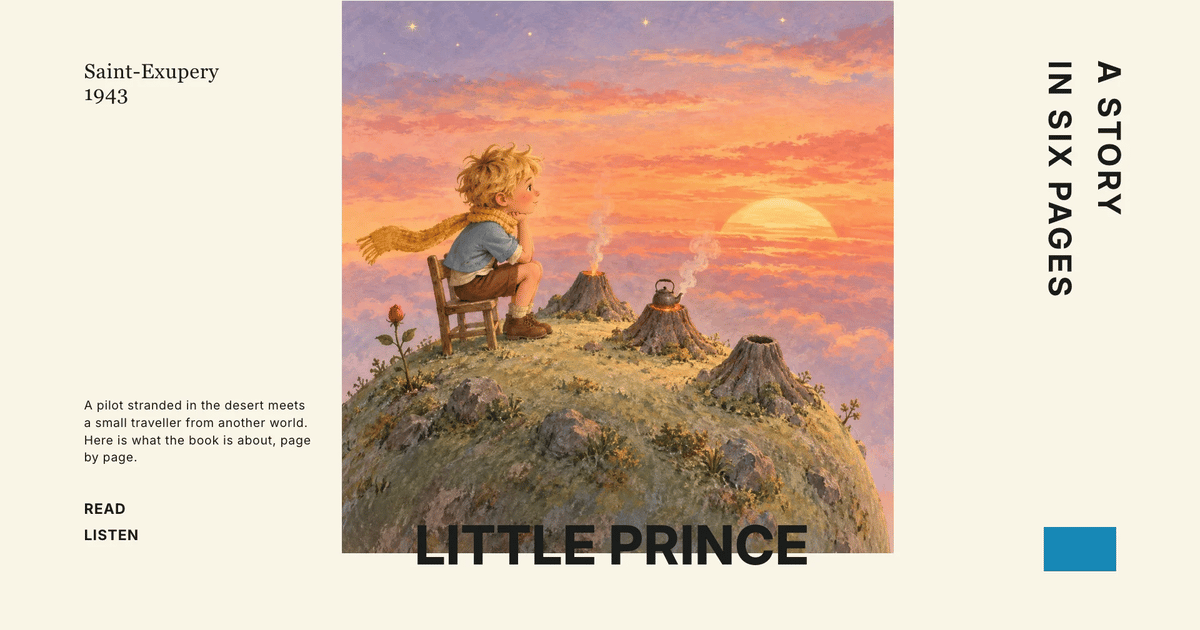
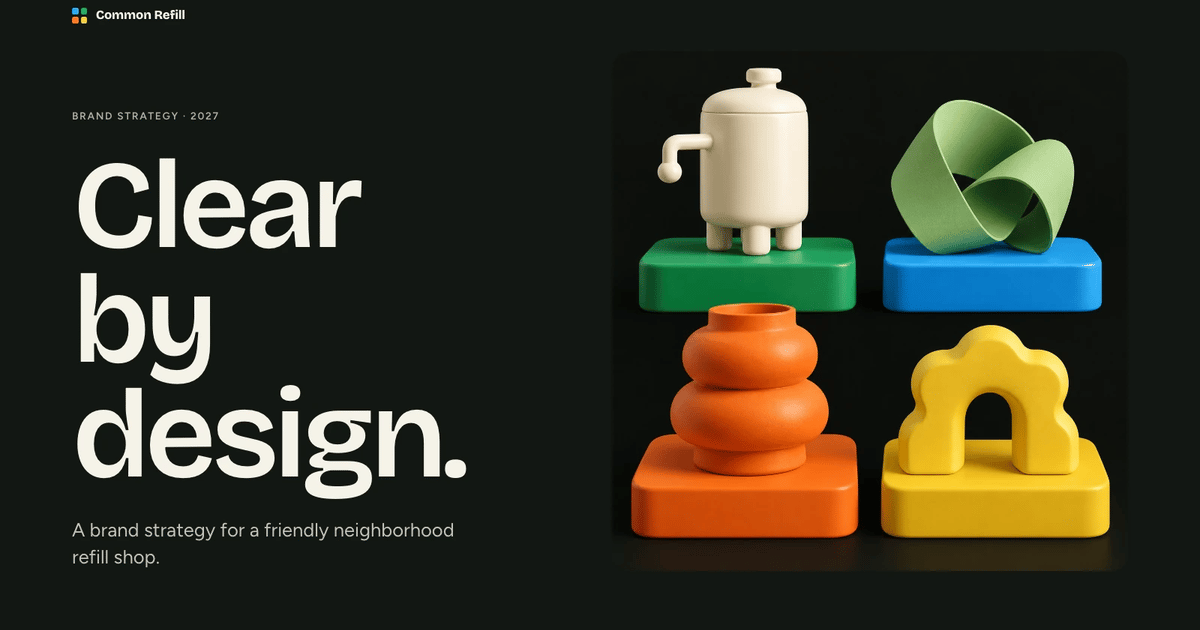
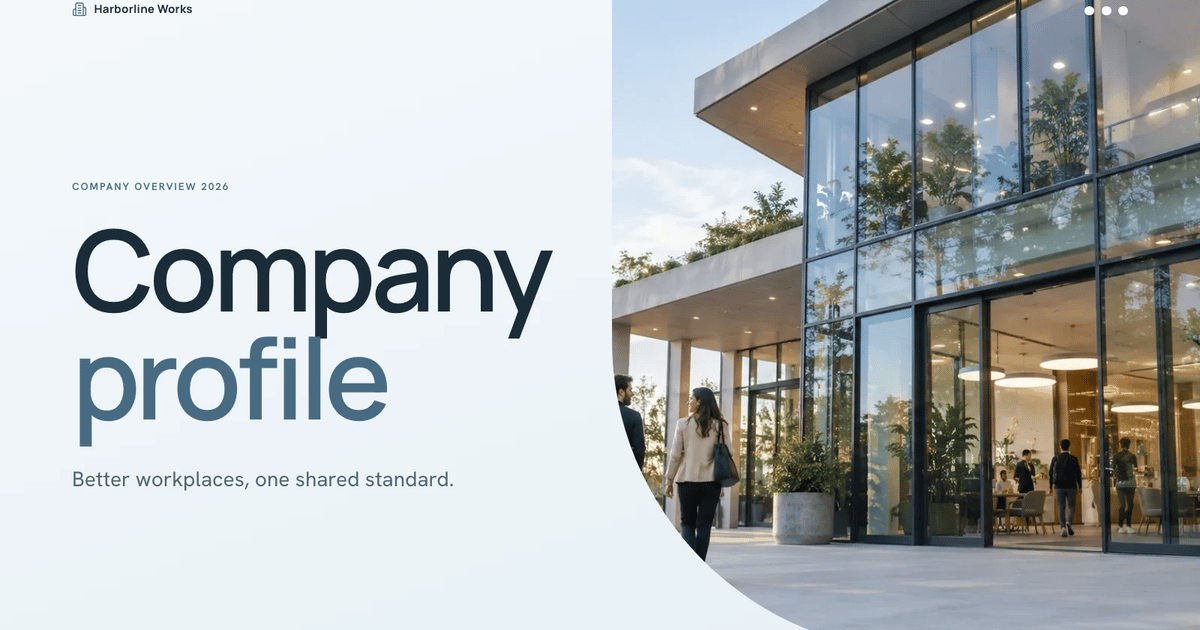
What you’ll get
- A complete presentation with oversized headlines, original marker drawings, photo bands, and speaker notes.
- Browser editing plus editable PowerPoint export: text and notes remain editable; backgrounds, drawings, and charts are images.
- Four coordinated color presets and reusable layouts for covers, goals, timelines, comparisons, and closing slides.
Great for
- Workshop hosts introducing a shared project or a hands-on activity.
- Teams explaining goals, responsibilities, milestones, and next steps.
- Community organizers or course creators who want a friendly illustrated presentation.
Skip it if
- Dense financial tables or long technical reports that need small text on every slide.
- Fully native PowerPoint drawings, charts, or shape-by-shape editing.
- Reproducing a reference artist, organization, logo, or existing slide design exactly.
About this Skill
- 1Confirm the user's topic, audience, source facts, communication language, content language and slide count. Write slide copy in English unless the user asks for another language. Keep this style's art direction, layout proportions and content limits below; do not substitute a generic template.
- 2Plan a clear narrative with one job per page, using the agreed number of fixed 16:9 pages and this style's word budgets and evidence rules.
- 3Read this package's style references (below). Named palettes are choices for slide content; the shared editor stays unchanged.
- 4Compose from the style kit so the deck matches the store example: write `plan.json` picking a recipe from `references/style-kit.json` for each page (recipes may repeat), set the new text, pictures, picture descriptions (`alt`), icons, chart labels and data values by node ID, remove nodes a page does not need, then run `python3 scripts/style-kit.py compose --style-kit references/style-kit.json --plan plan.json --output project.json`. Work through the report: fill every `unfilledImages` slot and replace each `leftoverExample` entry that belongs to the example's topic. The [compose guide](references/compose.md) documents every plan field. Refine `project.json` where needed (add, delete, move or restyle nodes, keeping IDs unique), keep the kit's `contentCSS`, and write `editor-config.json` with the bundled schema.
- 5Pictures:
- 6 - Before making any picture, ask the user once (with the step 1 questions when possible) and offer exactly three options. Pictures the user supplies come first in every option. If the user cannot be asked or does not answer, use option 1. Tell the user which option you used.
- 7 1. **Reuse this style's original pictures (recommended)**: use only pictures from this Skill's picture library, with no image credits. A slot with no fitting picture keeps its labeled image frame; list those slots for the user.
- 8 2. **Generate as needed**: reuse library pictures where they fit and generate only the remaining slots.
- 9 3. **Regenerate everything**: generate every picture new for this topic.
- 10 - Library: run `node scripts/embed-library-images.mjs --list`; use `any-topic` pictures freely and `topic-specific` ones only when their topic matches the deck, never show one picture on two pages, and set the plan's `images` value (or an image node `src`) to `library:<id>`. After composing, run `node scripts/embed-library-images.mjs project.json` to inline them; if a download fails, treat those slots as unfilled.
- 11 - Generate pictures following `references/image-prompts.md`, at the `aspect` that `style-kit.json` and the compose report list for each slot. Use FAL with the user's `FAL_KEY` through `node scripts/fal-image.mjs` (submit once, then status/fetch; each submission is a paid task that is never retried automatically). In ChatGPT or Codex, the built-in image generation (GPT Image) may be used instead and needs no key. Never use another image provider. Library pictures (`--download <id> --out <dir>`) or pictures already made for this deck can be passed as `--reference` to keep the series consistent.
- 12 - With neither FAL nor a built-in tool, options 2 and 3 fall back to option 1.
- 13Set `uiLocale` and `conversationLocale` to the user's communication language and `contentLocale`/`contentDirection` from the brief; compose detects Chinese, Japanese and Korean plans. Arabic and Hebrew right-to-left layout is handled by the framework; do not reverse logical arrays.
- 14Build and check: `python3 scripts/build-deck.py --project project.json --config editor-config.json --output presentation.html`, then `python3 scripts/check-deck.py presentation.html --expected-slides N --style-kit references/style-kit.json --report deck-check.json`. Resolve every example string the check still reports. If it warns about size, run `python3 scripts/optimize-images.py presentation.html` and check again.
- 15Open the file over local HTTP and inspect every page: typography, pictures, hierarchy, crops, bounds, contrast and spacing. Edit text, add/delete/move a block, change a color or Smart layout, edit notes, undo/redo, save and reopen. Presentation mode must disable editing and its glass navigation must hide after five idle seconds.
- 16Deliver the single HTML file. It opens in a page view with an Edit button and works offline. Tell the user that edits stay in the browser until they press Save (Cmd/Ctrl+S), which writes them into the file. On request, export PPTX from the built-in menu, run `python3 scripts/check-pptx.py presentation.pptx --project project.json --report pptx-check.json` and inspect it in PowerPoint, Keynote or WPS. Keynote uses the compatible `.pptx`. Print/PDF gives one page per slide.
---
name: bs-mint-marker-deck
description: Create a slide deck with oversized mint headlines, loose black marker characters, and warm paper backgrounds. Turn project plans, workshops, and team updates into a presentation you can edit in your browser and export to PowerPoint.
---

# Mint Marker Deck

A friendly editorial presentation: giant tightly tracked uppercase headings, warm paper, mint accent pages, and loose black marker illustrations. Use it for workshop decks, project introductions, team updates, community proposals, or any request for this look. The style is fixed; the story comes from the user's material.

## Shared editor contract

This style always uses the bundled framework in `references/framework/`; never build a separate editor or paging engine. The editor UI is identical across styles: black, white and gray, with localized icon tooltips and independently editable objects. Palettes, fonts, artwork and layouts stay specific to this Skill and come from its style kit. Read [runtime](references/runtime.md) for the editor, saving and export behaviour, and [compose guide](references/compose.md) for the plan format.

## Workflow

1. Confirm the user's topic, audience, source facts, communication language, content language and slide count. Write slide copy in English unless the user asks for another language. Keep this style's art direction, layout proportions and content limits below; do not substitute a generic template.
2. Plan a clear narrative with one job per page, using the agreed number of fixed 16:9 pages and this style's word budgets and evidence rules.
3. Read this package's style references (below). Named palettes are choices for slide content; the shared editor stays unchanged.
4. Compose from the style kit so the deck matches the store example: write `plan.json` picking a recipe from `references/style-kit.json` for each page (recipes may repeat), set the new text, pictures, picture descriptions (`alt`), icons, chart labels and data values by node ID, remove nodes a page does not need, then run `python3 scripts/style-kit.py compose --style-kit references/style-kit.json --plan plan.json --output project.json`. Work through the report: fill every `unfilledImages` slot and replace each `leftoverExample` entry that belongs to the example's topic. The [compose guide](references/compose.md) documents every plan field. Refine `project.json` where needed (add, delete, move or restyle nodes, keeping IDs unique), keep the kit's `contentCSS`, and write `editor-config.json` with the bundled schema.
5. Pictures:
   - Before making any picture, ask the user once (with the step 1 questions when possible) and offer exactly three options. Pictures the user supplies come first in every option. If the user cannot be asked or does not answer, use option 1. Tell the user which option you used.
     1. **Reuse this style's original pictures (recommended)**: use only pictures from this Skill's picture library, with no image credits. A slot with no fitting picture keeps its labeled image frame; list those slots for the user.
     2. **Generate as needed**: reuse library pictures where they fit and generate only the remaining slots.
     3. **Regenerate everything**: generate every picture new for this topic.
   - Library: run `node scripts/embed-library-images.mjs --list`; use `any-topic` pictures freely and `topic-specific` ones only when their topic matches the deck, never show one picture on two pages, and set the plan's `images` value (or an image node `src`) to `library:<id>`. After composing, run `node scripts/embed-library-images.mjs project.json` to inline them; if a download fails, treat those slots as unfilled.
   - Generate pictures following `references/image-prompts.md`, at the `aspect` that `style-kit.json` and the compose report list for each slot. Use FAL with the user's `FAL_KEY` through `node scripts/fal-image.mjs` (submit once, then status/fetch; each submission is a paid task that is never retried automatically). In ChatGPT or Codex, the built-in image generation (GPT Image) may be used instead and needs no key. Never use another image provider. Library pictures (`--download <id> --out <dir>`) or pictures already made for this deck can be passed as `--reference` to keep the series consistent.
   - With neither FAL nor a built-in tool, options 2 and 3 fall back to option 1.
6. Set `uiLocale` and `conversationLocale` to the user's communication language and `contentLocale`/`contentDirection` from the brief; compose detects Chinese, Japanese and Korean plans. Arabic and Hebrew right-to-left layout is handled by the framework; do not reverse logical arrays.
7. Build and check: `python3 scripts/build-deck.py --project project.json --config editor-config.json --output presentation.html`, then `python3 scripts/check-deck.py presentation.html --expected-slides N --style-kit references/style-kit.json --report deck-check.json`. Resolve every example string the check still reports. If it warns about size, run `python3 scripts/optimize-images.py presentation.html` and check again.
8. Open the file over local HTTP and inspect every page: typography, pictures, hierarchy, crops, bounds, contrast and spacing. Edit text, add/delete/move a block, change a color or Smart layout, edit notes, undo/redo, save and reopen. Presentation mode must disable editing and its glass navigation must hide after five idle seconds.
9. Deliver the single HTML file. It opens in a page view with an Edit button and works offline. Tell the user that edits stay in the browser until they press Save (Cmd/Ctrl+S), which writes them into the file. On request, export PPTX from the built-in menu, run `python3 scripts/check-pptx.py presentation.pptx --project project.json --report pptx-check.json` and inspect it in PowerPoint, Keynote or WPS. Keynote uses the compatible `.pptx`. Print/PDF gives one page per slide.

## Style references

Read the [style kit](references/style-kit.json), [compose guide](references/compose.md), [palettes](references/themes.md), [layout recipes](references/layouts.md), [image prompts](references/image-prompts.md), [icons](references/icon-library.md), [doodles](references/doodle-library.md), [style reference](references/style-reference.md) and [runtime](references/runtime.md).

## Inputs and outputs

- Inputs: topic or outline, audience, approximate slide count, the decision or action the talk should drive, and any figures, dates or photos that must be used exactly.
- Output: one self-contained presentation HTML (page view, editor, presentation mode, speaker notes, pictures inline), optionally an exported PPTX and a PDF via print.

## Restraint rules

- Word budget: headline at most 7 words (cover at most 5), one supporting line at most 18 words, at most 3 items of a short label plus one line, at most 45 words per page. Detail goes in the notes.
- No tag clutter: only the small `.brand` mark top-left; no pills, eyebrows, folios or footer captions.
- Content stays between about 79px and 634px from the top of the 1280x720 page.
- At most 3 content blocks per page, siblings in one style, one accent highlight, no picture overlapping another picture or a card.
- One corner radius (0) for every picture and box.
- Fonts: Bricolage Grotesque (display) and Figtree (body) are embedded as base64 in the style (`style-source.css`, carried in the kit's `contentCSS`); keep them and the `--font-display` / `--font-body` variables. Do not switch back to Arial or link web fonts.

## Constraints

- Fixed 1280x720 paper pages; the deck opens in a page view with an Edit button, and presentation mode is read-only.
- Light deck: paper pages with occasional mint pages; no dark pages, shadows, gradients or glossy cards.
- Original content only: no copied people, captions, logos or source identity; use the user's evidence faithfully.
- Local files only; this Skill never uploads, publishes or deploys.
- The finished deck makes no network requests; only the build step downloads library pictures.

## Style-specific planning and composition

- **Plan the talk.** Ask only for missing information that changes the deck. Write one message per slide and pick an archetype for each from `layouts.md`. Slide copy defaults to English. Never invent dates, results or endorsements; label targets and illustrative figures.

- **Theme.** Use Mint Paper unless the user names another preset from `themes.md`. Never accept arbitrary hex colors.

- **Lay out.** Build each page from its archetype's recipe in `references/style-kit.json` and follow the restraint rules above. Keep the 77px side margins, content between 79px and 634px from the top, running text at 17px or larger, and one focal point per page. The kit's CSS also styles a headline-above cover (`.cover-above`) and a mirrored split (`.split-reverse`) as alternative classes.

- **Icons.** Inline Lucide SVG only (`icon-library.md`), paired with text. No emoji, dingbats, icon fonts or Unicode arrows.

- **Pictures.** Follow Workflow step 5 for sources, the library question and tools; use `references/image-prompts.md` for the marker style block and scene ideas, and `references/doodle-library.md` for inline marker scenes. Never show one picture on two pages.

## Package boundary

Keep SKILL.md, scripts and references together. Include the shared runtime and required style resources. Examples, manifests, provider records, migration reports, previews and credentials do not belong in the installation ZIP. Use only references inside this Skill.
User reviews
0 reviews
No reviews yet.
Ratings show up here once real people have tried it. We don’t display scores without the reviews behind them.
FAQ
Can I edit the presentation after it is generated?
Yes. Open the browser editing studio to change text, replace pictures, reorder slides, adjust notes, and choose a theme. PowerPoint export keeps eligible text and speaker notes editable; drawings, charts, and backgrounds are exported as images.
Do I need an image-generation account?
Decks can reuse this Skill's own picture library at no image cost: you choose up front whether to reuse it or generate every picture new. New pictures use your agent's built-in image generation tool (GPT Image class) with no separate API key, and availability follows your agent account.
Can I use a different language or color?
Slide copy is English by default. Ask for another language explicitly. Choose Mint Paper, Clay Paper, Cobalt Paper, or Plum Paper; each keeps the same warm paper, dark ink, and marker style.