Cobalt Ribbon Profile Deck
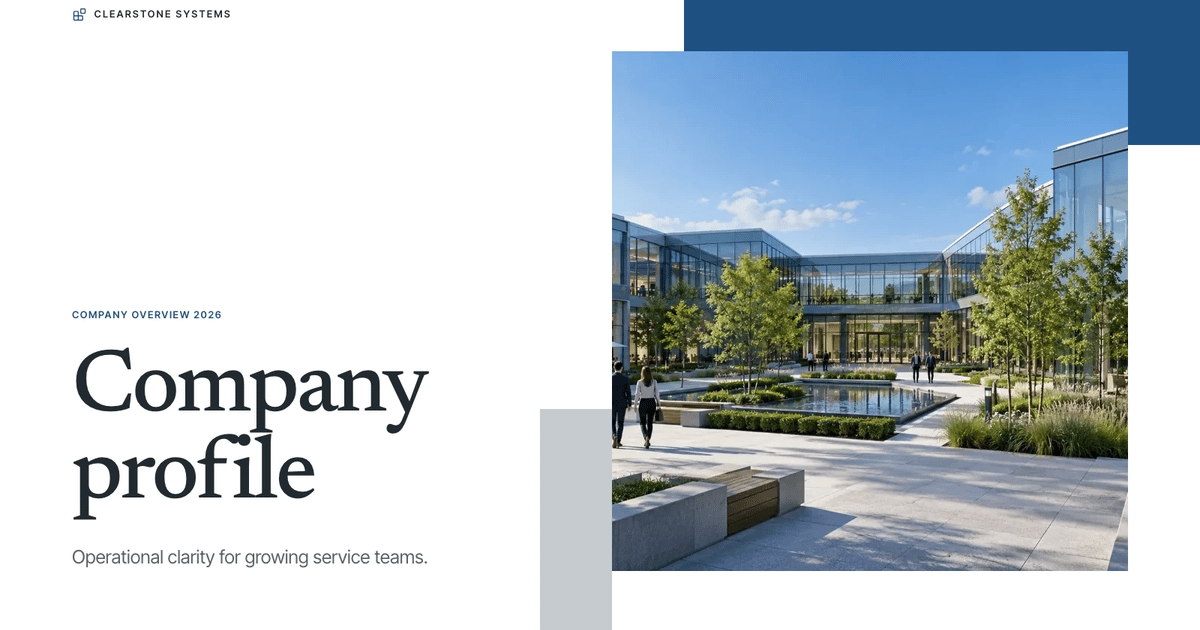
Create a company profile with cobalt title ribbons, angled architectural imagery, and structured goal pages. Turn an operating story into a focused presentation you can edit in your browser and export to PowerPoint.


Similar Skills



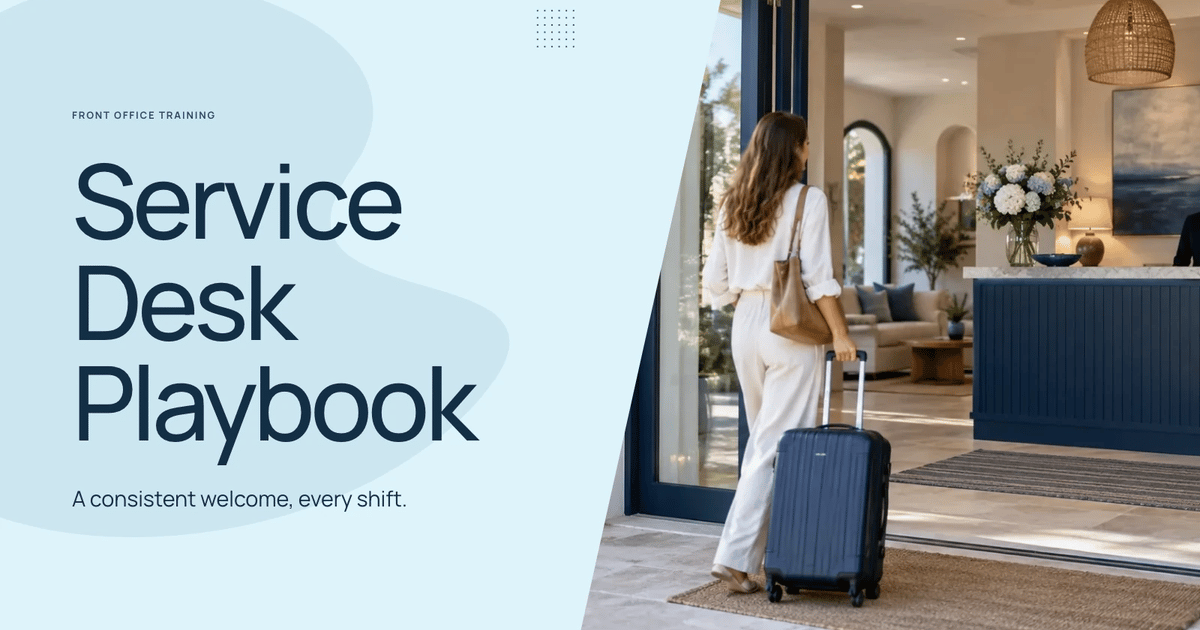
What you’ll get
- A coordinated deck with cobalt angled title ribbons, diagonal architectural crops, crisp white space, and compact goal cards.
- Browser editing and PowerPoint export with editable text and notes; backgrounds, charts, and complex shapes may remain images.
- Ten page archetypes, speaker notes, and four coordinated themes for future presentations.
Great for
- Company introductions and partner updates
- Teams explaining their services and operating model
- Training and shared operational standards
Skip it if
- Arbitrary styling unrelated to the locked visual system
- Automatic verification of business figures or policies
- PowerPoint files in which every visual is a native shape
About this Skill
- 1Confirm the user's topic, audience, source facts, communication language, content language and slide count. Write slide copy in English unless the user asks for another language. Keep this style's art direction, layout proportions and content limits below; do not substitute a generic template.
- 2Plan a clear narrative with one job per page, using the agreed number of fixed 16:9 pages and this style's word budgets and evidence rules.
- 3Read this package's style references (below). Named palettes are choices for slide content; the shared editor stays unchanged.
- 4Compose from the style kit so the deck matches the store example: write `plan.json` picking a recipe from `references/style-kit.json` for each page (recipes may repeat), set the new text, pictures, picture descriptions (`alt`), icons, chart labels and data values by node ID, remove nodes a page does not need, then run `python3 scripts/style-kit.py compose --style-kit references/style-kit.json --plan plan.json --output project.json`. Work through the report: fill every `unfilledImages` slot and replace each `leftoverExample` entry that belongs to the example's topic. The [compose guide](references/compose.md) documents every plan field. Refine `project.json` where needed (add, delete, move or restyle nodes, keeping IDs unique), keep the kit's `contentCSS`, and write `editor-config.json` with the bundled schema.
- 5Pictures:
- 6 - Before making any picture, ask the user once (with the step 1 questions when possible) and offer exactly three options. Pictures the user supplies come first in every option. If the user cannot be asked or does not answer, use option 1. Tell the user which option you used.
- 7 1. **Reuse this style's original pictures (recommended)**: use only pictures from this Skill's picture library, with no image credits. A slot with no fitting picture keeps its labeled image frame; list those slots for the user.
- 8 2. **Generate as needed**: reuse library pictures where they fit and generate only the remaining slots.
- 9 3. **Regenerate everything**: generate every picture new for this topic.
- 10 - Library: run `node scripts/embed-library-images.mjs --list`; use `any-topic` pictures freely and `topic-specific` ones only when their topic matches the deck, never show one picture on two pages, and set the plan's `images` value (or an image node `src`) to `library:<id>`. After composing, run `node scripts/embed-library-images.mjs project.json` to inline them; if a download fails, treat those slots as unfilled.
- 11 - Generate pictures following `references/image-prompts.md`, at the `aspect` that `style-kit.json` and the compose report list for each slot. Use FAL with the user's `FAL_KEY` through `node scripts/fal-image.mjs` (submit once, then status/fetch; each submission is a paid task that is never retried automatically). In ChatGPT or Codex, the built-in image generation (GPT Image) may be used instead and needs no key. Never use another image provider. Library pictures (`--download <id> --out <dir>`) or pictures already made for this deck can be passed as `--reference` to keep the series consistent.
- 12 - With neither FAL nor a built-in tool, options 2 and 3 fall back to option 1.
- 13Set `uiLocale` and `conversationLocale` to the user's communication language and `contentLocale`/`contentDirection` from the brief; compose detects Chinese, Japanese and Korean plans. Arabic and Hebrew right-to-left layout is handled by the framework; do not reverse logical arrays.
- 14Build and check: `python3 scripts/build-deck.py --project project.json --config editor-config.json --output presentation.html`, then `python3 scripts/check-deck.py presentation.html --expected-slides N --style-kit references/style-kit.json --report deck-check.json`. Resolve every example string the check still reports. If it warns about size, run `python3 scripts/optimize-images.py presentation.html` and check again.
- 15Open the file over local HTTP and inspect every page: typography, pictures, hierarchy, crops, bounds, contrast and spacing. Edit text, add/delete/move a block, change a color or Smart layout, edit notes, undo/redo, save and reopen. Presentation mode must disable editing and its glass navigation must hide after five idle seconds.
- 16Deliver the single HTML file. It opens in a page view with an Edit button and works offline. Tell the user that edits stay in the browser until they press Save (Cmd/Ctrl+S), which writes them into the file. On request, export PPTX from the built-in menu, run `python3 scripts/check-pptx.py presentation.pptx --project project.json --report pptx-check.json` and inspect it in PowerPoint, Keynote or WPS. Keynote uses the compatible `.pptx`. Print/PDF gives one page per slide.
---
name: bs-cobalt-ribbon-profile-deck
description: Create a company profile with cobalt title ribbons, angled architectural imagery, and structured goal pages. Turn an operating story into a focused presentation you can edit in your browser and export to PowerPoint.
---

# Cobalt Ribbon Profile Deck

Use this Skill for company profiles, operating plans, partner updates and training decks that call for angled cobalt title ribbons, edge-bleed photography with diagonal cuts, crisp white space and structured goal, process, chart and table pages.

## Shared editor contract

This style always uses the bundled framework in `references/framework/`; never build a separate editor or paging engine. The editor UI is identical across styles: black, white and gray, with localized icon tooltips and independently editable objects. Palettes, fonts, artwork and layouts stay specific to this Skill and come from its style kit. Read [runtime](references/runtime.md) for the editor, saving and export behaviour, and [compose guide](references/compose.md) for the plan format.

## Workflow

1. Confirm the user's topic, audience, source facts, communication language, content language and slide count. Write slide copy in English unless the user asks for another language. Keep this style's art direction, layout proportions and content limits below; do not substitute a generic template.
2. Plan a clear narrative with one job per page, using the agreed number of fixed 16:9 pages and this style's word budgets and evidence rules.
3. Read this package's style references (below). Named palettes are choices for slide content; the shared editor stays unchanged.
4. Compose from the style kit so the deck matches the store example: write `plan.json` picking a recipe from `references/style-kit.json` for each page (recipes may repeat), set the new text, pictures, picture descriptions (`alt`), icons, chart labels and data values by node ID, remove nodes a page does not need, then run `python3 scripts/style-kit.py compose --style-kit references/style-kit.json --plan plan.json --output project.json`. Work through the report: fill every `unfilledImages` slot and replace each `leftoverExample` entry that belongs to the example's topic. The [compose guide](references/compose.md) documents every plan field. Refine `project.json` where needed (add, delete, move or restyle nodes, keeping IDs unique), keep the kit's `contentCSS`, and write `editor-config.json` with the bundled schema.
5. Pictures:
   - Before making any picture, ask the user once (with the step 1 questions when possible) and offer exactly three options. Pictures the user supplies come first in every option. If the user cannot be asked or does not answer, use option 1. Tell the user which option you used.
     1. **Reuse this style's original pictures (recommended)**: use only pictures from this Skill's picture library, with no image credits. A slot with no fitting picture keeps its labeled image frame; list those slots for the user.
     2. **Generate as needed**: reuse library pictures where they fit and generate only the remaining slots.
     3. **Regenerate everything**: generate every picture new for this topic.
   - Library: run `node scripts/embed-library-images.mjs --list`; use `any-topic` pictures freely and `topic-specific` ones only when their topic matches the deck, never show one picture on two pages, and set the plan's `images` value (or an image node `src`) to `library:<id>`. After composing, run `node scripts/embed-library-images.mjs project.json` to inline them; if a download fails, treat those slots as unfilled.
   - Generate pictures following `references/image-prompts.md`, at the `aspect` that `style-kit.json` and the compose report list for each slot. Use FAL with the user's `FAL_KEY` through `node scripts/fal-image.mjs` (submit once, then status/fetch; each submission is a paid task that is never retried automatically). In ChatGPT or Codex, the built-in image generation (GPT Image) may be used instead and needs no key. Never use another image provider. Library pictures (`--download <id> --out <dir>`) or pictures already made for this deck can be passed as `--reference` to keep the series consistent.
   - With neither FAL nor a built-in tool, options 2 and 3 fall back to option 1.
6. Set `uiLocale` and `conversationLocale` to the user's communication language and `contentLocale`/`contentDirection` from the brief; compose detects Chinese, Japanese and Korean plans. Arabic and Hebrew right-to-left layout is handled by the framework; do not reverse logical arrays.
7. Build and check: `python3 scripts/build-deck.py --project project.json --config editor-config.json --output presentation.html`, then `python3 scripts/check-deck.py presentation.html --expected-slides N --style-kit references/style-kit.json --report deck-check.json`. Resolve every example string the check still reports. If it warns about size, run `python3 scripts/optimize-images.py presentation.html` and check again.
8. Open the file over local HTTP and inspect every page: typography, pictures, hierarchy, crops, bounds, contrast and spacing. Edit text, add/delete/move a block, change a color or Smart layout, edit notes, undo/redo, save and reopen. Presentation mode must disable editing and its glass navigation must hide after five idle seconds.
9. Deliver the single HTML file. It opens in a page view with an Edit button and works offline. Tell the user that edits stay in the browser until they press Save (Cmd/Ctrl+S), which writes them into the file. On request, export PPTX from the built-in menu, run `python3 scripts/check-pptx.py presentation.pptx --project project.json --report pptx-check.json` and inspect it in PowerPoint, Keynote or WPS. Keynote uses the compatible `.pptx`. Print/PDF gives one page per slide.

## Style references

Read the [style kit](references/style-kit.json), [compose guide](references/compose.md), [palettes](references/themes.md), [layout recipes](references/layouts.md), [image prompts](references/image-prompts.md), [icons](references/icon-library.md), [style reference](references/style-reference.md) and [runtime](references/runtime.md).

## Inputs and outputs

- Inputs: audience, approximate slide count, source facts or notes, and the action the deck should drive.
- Output: one self-contained presentation HTML (page view, editor, presentation mode, speaker notes, pictures inline), optionally an exported PPTX and a PDF via print.

## Restraint rules

- Word budget: headline ≤ 7 words (cover ≤ 5), one supporting line ≤ 18 words, at most 3 items of label ≤ 3 words + one line ≤ 10 words, ≤ 45 words per slide; detail goes into the notes.
- No tag clutter: only the small brand mark top-left; no pills, eyebrows (one tiny cover label), folios or footer captions.
- At most 3 content blocks per slide, at least 30% empty; siblings share one style, one highlighted by accent only.
- One radius (0) for every photo and card; never overlap photos or float cards over them.

## Constraints

- Never edit the bundled framework; change only page content, theme tokens, speaker notes and `editor-config.json`.
- Light pages only; the cover is the single cobalt page.
- Body text at least 17px, page titles 54-72px, big numbers 72-92px, pictures anchored to an edge or a full column.
- Organization names, people and numbers in examples are fictional; never imply real customer proof.

## Style-specific planning and composition

- **Brief.** Confirm audience, slide count, facts and the closing action. Ask only for facts that change the result. Write slide copy in English unless the user asks otherwise. Keep approved figures; mark invented numbers as illustrative in the notes (or one short footnote).

- **Theme.** Apply one preset from `references/themes.md`; the authored cobalt look is the default. Change only `--ink`, `--paper`, `--accent`. Type is the embedded Schibsted Grotesk (display) and Instrument Sans (body) pair in the style CSS; keep `--font-display` / `--font-body`.

- **Layouts.** Build the agreed number of pages from the style kit's recipes, whose ten archetypes are described in `references/layouts.md` (cover, contents, about, mission band, services, key figures, process, chart, table, closing), on its 12-column grid (77px margins, content from y 79px to 634px), and alternate picture pages with structured pages. One takeaway per page. Follow the restraint rules above.

- **Icons.** Use inline 24-unit SVG from `references/icon-library.md`, always paired with words. Never use emoji, dingbats, icon fonts or logos.

- **Pictures.** Follow Workflow step 5 (user pictures first, the library question, generation and labeled frames). Frame shapes, crop notes and prompt patterns are in `references/image-prompts.md`.

- **Export when asked.** Follow Workflow step 9, read every warning in the PPTX check report, and say whether the result was inspected in a native presentation app.

## Package boundary

Keep SKILL.md, scripts and references together. Include the shared runtime and required style resources. Examples, manifests, provider records, migration reports, previews and credentials do not belong in the installation ZIP. Use only references inside this Skill.
User reviews
0 reviews
No reviews yet.
Ratings show up here once real people have tried it. We don’t display scores without the reviews behind them.
FAQ
Can I edit the presentation?
Yes. Edit text, pictures, slide order, themes, and notes in the browser studio. PowerPoint text and notes remain editable after export.
Do I need an image-generation account?
Decks can reuse this Skill's own picture library at no image cost: you choose up front whether to reuse it or generate every picture new. New pictures use your agent's built-in image generation tool (GPT Image class) with no separate API key, and availability follows your agent account.
Can it use our real business material?
Yes. Provide an approved outline, verified figures, and imagery you have permission to use. Review the result before sharing it.