Narrated Report Deck
Turn any document, report, link or idea into a narrated presentation you can listen to. Pick a look from every Skillry PPT style, get an editable deck with a spoken script for each page, then add voiceover from ElevenLabs or HeyGen. The finished deck plays page by page with speed control and auto-a…


Similar Skills


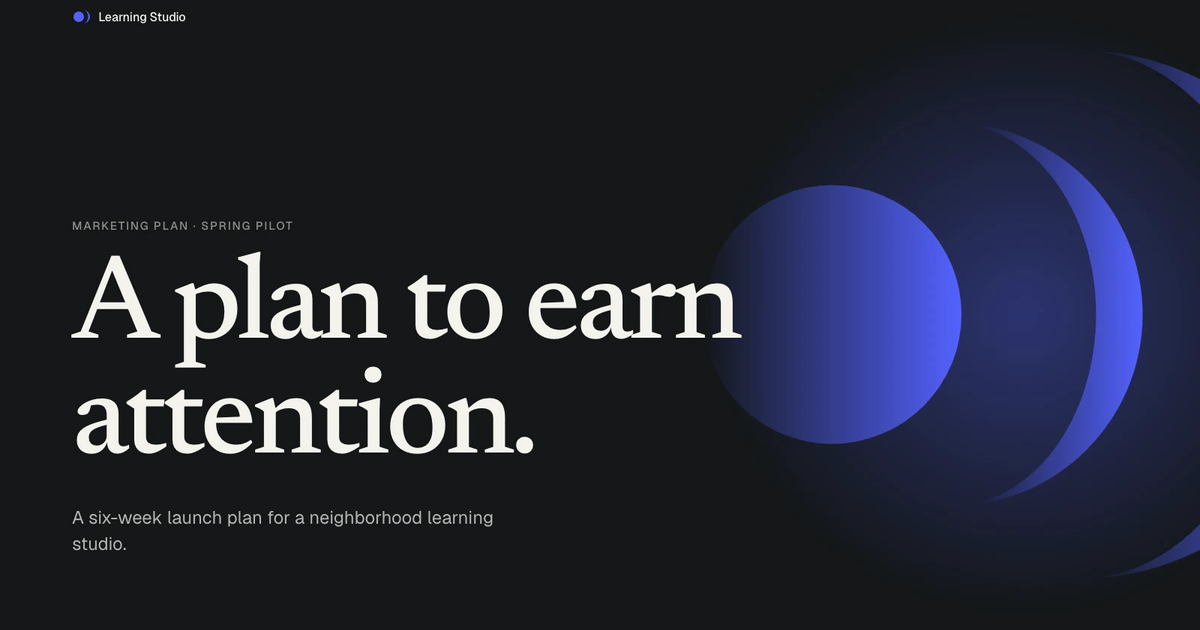

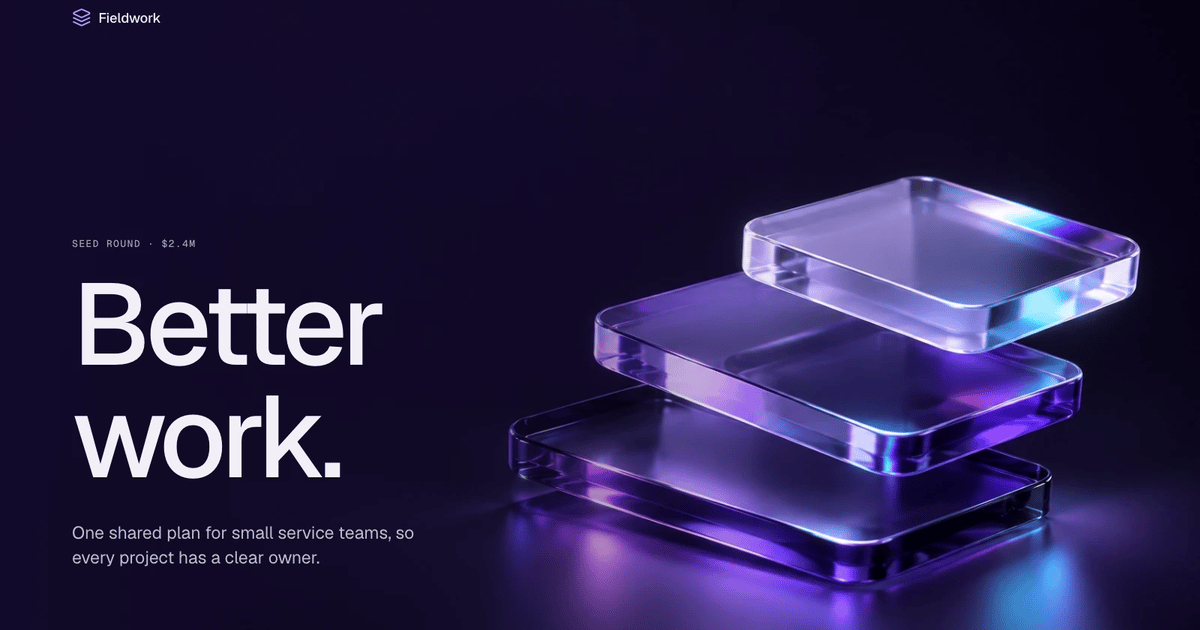


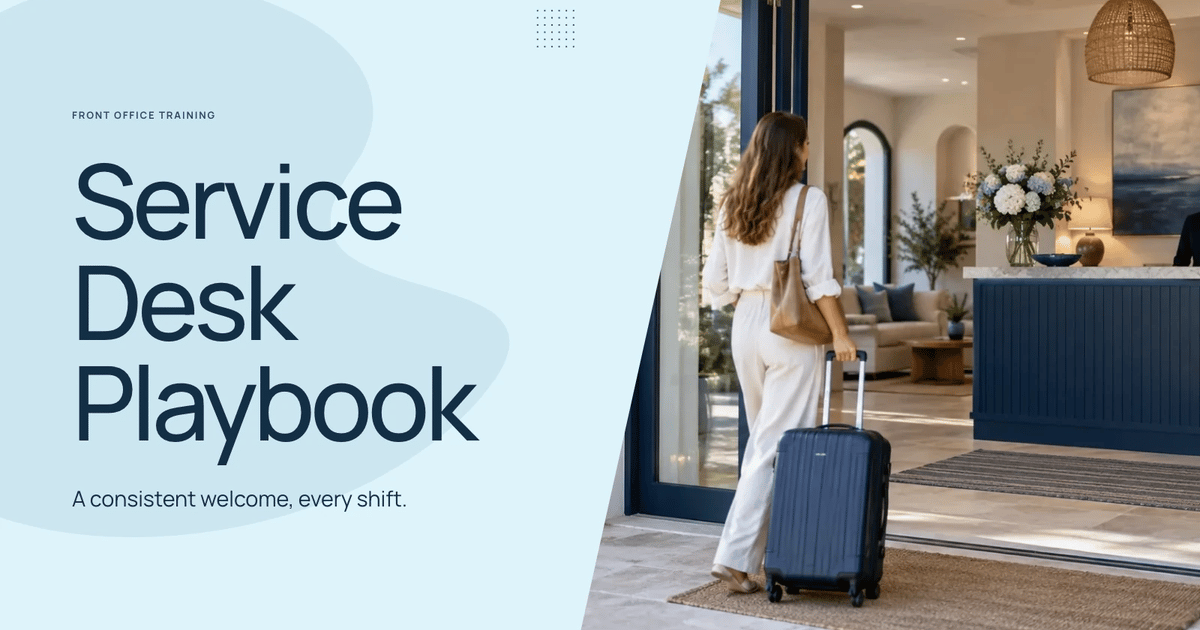
What you’ll get
- An editable presentation in the PPT style you pick from the full Skillry catalog, with your last choice listed first.
- A spoken script for every page, stored as speaker notes you can edit and export with the deck.
- Voiceover from ElevenLabs or HeyGen and a built-in player with play, seek, 0.75–2× speed and auto-advance.
Great for
- Turning a long report or research document into something you can listen to.
- Teams that share updates and reviews as self-paced narrated decks.
- Creators who want the same material in several languages and voices.
Skip it if
- Animated explainer videos or motion graphics.
- Live presenting where you speak over the slides yourself.
- Content you cannot share with a voice provider, since narration is sent to ElevenLabs or HeyGen.
About this Skill
---
name: bs-audio-report-deck
description: "Turn any document, report, link or idea into a narrated presentation you can listen to. Pick a look from every Skillry PPT style, get an editable deck with a spoken script for each page, then add voiceover from ElevenLabs or HeyGen. The finished deck plays page by page with speed control and auto-advance, and your last style choice is remembered."
---

# Narrated Report Deck

Three deliverables, in two stages:

1. **Stage 1 — PPT + narration.** An editable presentation built with a Skillry PPT style the user chooses, with a spoken script on every page (stored as that page's speaker notes).
2. **Stage 2 — voiceover.** After the user approves the scripts, every page is voiced and a player is added: one centered bar with play/pause (button or Space), page count, seek, 0.75–2× speed, a labeled auto-advance toggle, script view and, in Present mode, Exit.

Never start Stage 2 in the same breath as Stage 1. Voiceover is paid; the user approves the scripts and the cost first.

Work in a project folder, `./audio-report/<topic-slug>/` unless the user names one. Reply in the user's language throughout.

## 1. Brief and source

- Accept any input: `.md`, `.txt`, `.docx`, `.pdf`, `.pptx`, `.html`, a web link, pasted text, or only a topic. Save what you read to `source/`. For a topic with no material, research it with the tools you have and keep the links you used in `source/notes.md`.
- Confirm in one message: **audience**, **content language** (the language on the slides and in the voice; default to the language the user writes in), **length** (pages follow the content, roughly one minute of narration per page; offer a number, never pad) and **voice service**.
- **Voice service is always the user's choice, asked here at the start.** Run `node scripts/tts.mjs providers` first: it shows whether `ELEVENLABS_API_KEY` and `HEYGEN_API_KEY` are set (never their values) and which service was used last. Offer both, ElevenLabs and HeyGen, with the last used one marked and listed first, and a one-line difference: ElevenLabs has native voices per language and bills credits per character; HeyGen uses the user's own cloned voice when the workspace has one, otherwise HeyGen's public voices. Record the answer with `node scripts/tts.mjs providers --choose <elevenlabs|heygen>`. If the chosen service's key is not set, tell the user now (set it in their environment, never paste it into the chat) so it is ready before Stage 2; the deck can still be built meanwhile.
- Write `outline.md`: every chapter and subsection of the source, each mapped to the page(s) that will cover it. Coverage is checked against this list, so do not drop sections silently; tell the user what you leave out and why.

## 2. Choose a style

All Skillry PPT styles come from a public API (no sign-in, cached for an hour):

```bash
node scripts/styles.mjs pick --locale <ui-locale>
```

`<ui-locale>` is the user's language: `en`, `zh`, `zh-tw`, `ja`, `ko`, `es`, `pt-br`, `de` or `fr`. A local page opens in the user's browser: a full-width grid of up to eight styles per row (fewer on smaller screens) with cover images, previews, Free/Pro badges, search, a free-only filter and a language switcher that reloads the style names and descriptions in that language. The style used last time is the first card, marked **Last used**; other styles used before follow, marked **Used before**. When the user clicks a style the command prints the choice as JSON and remembers it with the language shown.

- Start `pick` once, in the background, and wait for it to return; tell the user the URL it prints in case the browser did not open. The page only works while that command runs: do not stop or restart it while the user is choosing. If you must restart it, give the user the new URL and tell them to close the old tab.

- If the user says "same as last time" or names a style, skip the page: `node scripts/styles.mjs prefs` shows the last slug; `node scripts/styles.mjs choose <slug>` records a named one.
- Without a browser (the command errors or the user prefers chat): run `node scripts/styles.mjs list --locale <ui-locale>`, show the first eight as a numbered list (keep the **last used** mark), then `choose <slug>` with their answer.
- Offer a recommendation from the brief (`list --json` includes each style's description and style tags), but the user decides. Never pick silently, except "same as last time".
- `--base-url <url>` (or `SKILLRY_URL`) points at another Skillry environment; preferences are kept in `~/.skillry/audio-ppt/preferences.json` and never hold credentials.

## 3. Get the style Skill

```bash
node scripts/styles.mjs locate <slug>
```

- `installed: true` → use the `path` it prints.
- Otherwise run the printed `installCommand` (Skillry CLI; it opens a browser sign-in the first time). A Pro style needs the user's Skillry membership or purchase; if the install is refused, say so, link the style's `detailUrl`, and offer a Free style instead. Never fetch or recreate a style some other way.

Read that Skill's `SKILL.md` and its references. **Its rules govern the deck**: art direction, style kit and `plan.json`, picture rules (including how it sources images and what it costs), build and check scripts, browser review. This Skill adds narration on top; it never replaces the style's look with its own.

## 4. Build the PPT with narration

Follow the style Skill's workflow with these additions:

- Plan pages from `outline.md`. One idea per page; split rather than shrink.
- Put each page's narration in that slide's `notes` field of `plan.json` (or `project.json`). Write it by [references/narration.md](references/narration.md): a speaker explaining the page, not reading it, adding the source's context and causes, linking to the next page. Set `contentLocale` and `uiLocale` as the style Skill describes.
- Numbers, names, dates and quotes on slides and in narration come only from the source, with its precision and qualifiers.
- Build and check with the style's own scripts (usually `build-deck.py` then `check-deck.py`) to `presentation.html`, then review every page in a browser as the style Skill requires.
- Run the deck review in [references/readability.md](references/readability.md) on every page: text below the size floor for the content language (raise it with `scripts/readability.py`; CJK copy in styles drawn for English almost always needs it), picture crops that cut off faces or the subject (fix with `object-position` in the plan), badge or ring text longer than the example's and decorations covering a subject or copy (shorten or remove them).
- Keep the steps in a `build.sh` in the project folder (compose → embed library pictures → `readability.py` → build → check), so a content edit is one re-run. Compose rewrites `project.json`, so readability rules belong in the script, not in a hand-edited file.

Then export and check the scripts:

```bash
python3 scripts/narrate.py export --deck presentation.html --out narration.json --md narration.md
python3 scripts/narrate.py check --narration narration.json
```

Fix every problem `check` lists (missing pages, URLs, emoji, lists, over-long pages); short cover or closing pages are fine.

**Stop here.** Give the user `presentation.html` and `narration.md` and ask them to review the slides and scripts. They may edit scripts in the deck itself (Edit → speaker notes → Save) or ask you to change them.

## 5. Voiceover (after the user approves)

Use the service the user chose in step 1; every `tts.mjs` command reads that choice, so `--provider` is only needed to override it. Each service reads only its own key from the environment.

| Service | Key | Voices | Cost shown in the estimate |
| --- | --- | --- | --- |
| ElevenLabs | `ELEVENLABS_API_KEY` | Account voices, including native voices per language, and premade voices | Characters = ElevenLabs credits (Multilingual v2) |
| HeyGen Voice | `HEYGEN_API_KEY` | The workspace's own cloned voices first, then HeyGen's public voices (they speak other languages too) | Characters; HeyGen bills usage to the workspace, see its usage page |

If the user has only a FAL key, `--provider fal` runs ElevenLabs through FAL ($0.10 per 1,000 characters); offer it only when they bring it up. Never switch services on your own.

```bash
node scripts/tts.mjs voices --lang <content-lang>
node scripts/tts.mjs estimate --narration narration.json --out-dir audio [--voice <name|id>]
```

On ElevenLabs, `--model <id>` picks another model, for example `eleven_v4` (one credit per character) or `eleven_v4_turbo` (half); the default is Multilingual v2, and the model is part of each page's cache key. An explicit `--provider` is treated as a one-off (for example a comparison) and does not replace the service the user chose in step 1.

Without `--voice` the voice used last time for this service and language is the default (`voiceLastUsed: true` in the estimate); otherwise one is chosen and named in the estimate: on ElevenLabs a native voice of the content language from the account (fallback Sarah); on HeyGen the user's own clone in that language, then any own clone, then a public voice. Offer the user the list and let them pick or keep it. A HeyGen professional clone also honors `--speed` (0.75-1.25); instant and public voices ignore it. HeyGen returns WAV, converted to MP3 when `ffmpeg` is installed (about ten times smaller); otherwise the WAV files are kept.

Tell the user the estimate in one line, for example "24 pages, 6,480 characters ≈ 6,480 ElevenLabs credits, voice Amy" or "24 pages, 6,480 characters on HeyGen, voice Nadine", and wait for a clear yes. Then:

```bash
node scripts/tts.mjs generate --narration narration.json --out-dir audio --voice <name> --yes
python3 scripts/narrate.py inject --deck presentation.html --audio audio/manifest.json
```

- Pages are keyed by text and voice: re-running voices only new or changed pages, so finished pages are never paid twice. Do not loop on failures — report them.
- HTTP 401/402/403, no credits or an unknown, expired or untrained voice stops the run. Tell the user; do not switch keys or providers on your own. HeyGen rate limits and temporary upstream errors (429, 502-504) are waited out and retried at most twice, as HeyGen documents them as safe to retry; nothing else is retried.
- HeyGen accepts at most 5,000 characters per page; the narration limits keep pages far below that.
- Names a voice misreads go in a `pronunciations.json` (`{"zh": {"OpenSEO": "<how it should sound, written in Chinese>"}}`) passed with `--pronunciations`; the slides keep the written form.
- `inject` is idempotent; run it again after every rebuild (a rebuild writes a fresh `presentation.html` without the player). Also write a single-file copy for sharing: `python3 scripts/narrate.py inject --deck presentation.html --audio audio/manifest.json --embed --output <topic>-narrated.html` (audio inlined; it refuses above 18 MB, then the `audio/` folder must travel with the HTML).

Open the deck over local HTTP and verify with real audio, in page view and in Present mode: Space and the play button both toggle playback (Space must not turn the page or scroll), seek, speed, auto-advance across pages, the script panel, Exit in Present mode, and that silent pages are skipped. With narration the player is the only bottom bar; Edit/Present sit at the top right and the deck's own present navigation is hidden.

## 6. Deliver

Report the folder with the single-file `<topic>-narrated.html`, `presentation.html` + `audio/`, `narration.md`, `outline.md` and `build.sh`; page count, total narration length, voice and the style used. Tell the user:

- The single file plays offline anywhere; `presentation.html` needs its `audio/` folder next to it.
- **Present** (top right) plays full screen; **Space** or **P** play/pause, **A** auto-advance, **]** speed; Exit or Esc leaves Present mode.
- Editing a script after recording marks that page with an amber dot; run `export` → `tts.mjs generate` → `inject` again and only changed pages are re-voiced (re-export from the HTML they saved).
- PPTX export (deck menu) carries the narration as speaker notes; audio stays in the HTML player.

## Rules

1. Facts only from the source. Keep its qualifiers ("estimated", "self-reported").
2. Every paid step (style pictures, voiceover) gets an estimate and the user's yes first.
3. Never print, store or request API keys or tokens in the chat or in files.
4. Keep the chosen style's look; do not mix styles or fall back to a generic template.
5. Stage 1 ends with the user's review; Stage 2 only after their approval.
6. The user picks the voice service (ElevenLabs or HeyGen) at the start; never choose or switch it for them.
User reviews
0 reviews
No reviews yet.
Ratings show up here once real people have tried it. We don’t display scores without the reviews behind them.
FAQ
Which voice services does it support?
ElevenLabs and HeyGen. You choose one at the start, and it uses your own API key from the environment. ElevenLabs offers native voices per language; HeyGen uses your cloned voice when you have one, otherwise its public voices.
Do I see the scripts before paying for audio?
Yes. The deck and every page's script come first. Voiceover is generated only after you approve the scripts and the character estimate, and unchanged pages are never voiced twice.
Can I share the finished deck?
Yes. You get a single HTML file with the audio inside that plays offline, plus a version with a separate audio folder. The deck can also be exported to PowerPoint with the scripts as speaker notes.